Add a new client
Create a client record with their contact details, date of birth, skin type and card number.
Who can do this: Everyone
Every client needs a record before they can buy minutes or go on a bed. You can add one from the Clients screen, or straight from a booking with + New customer (see Book a session).
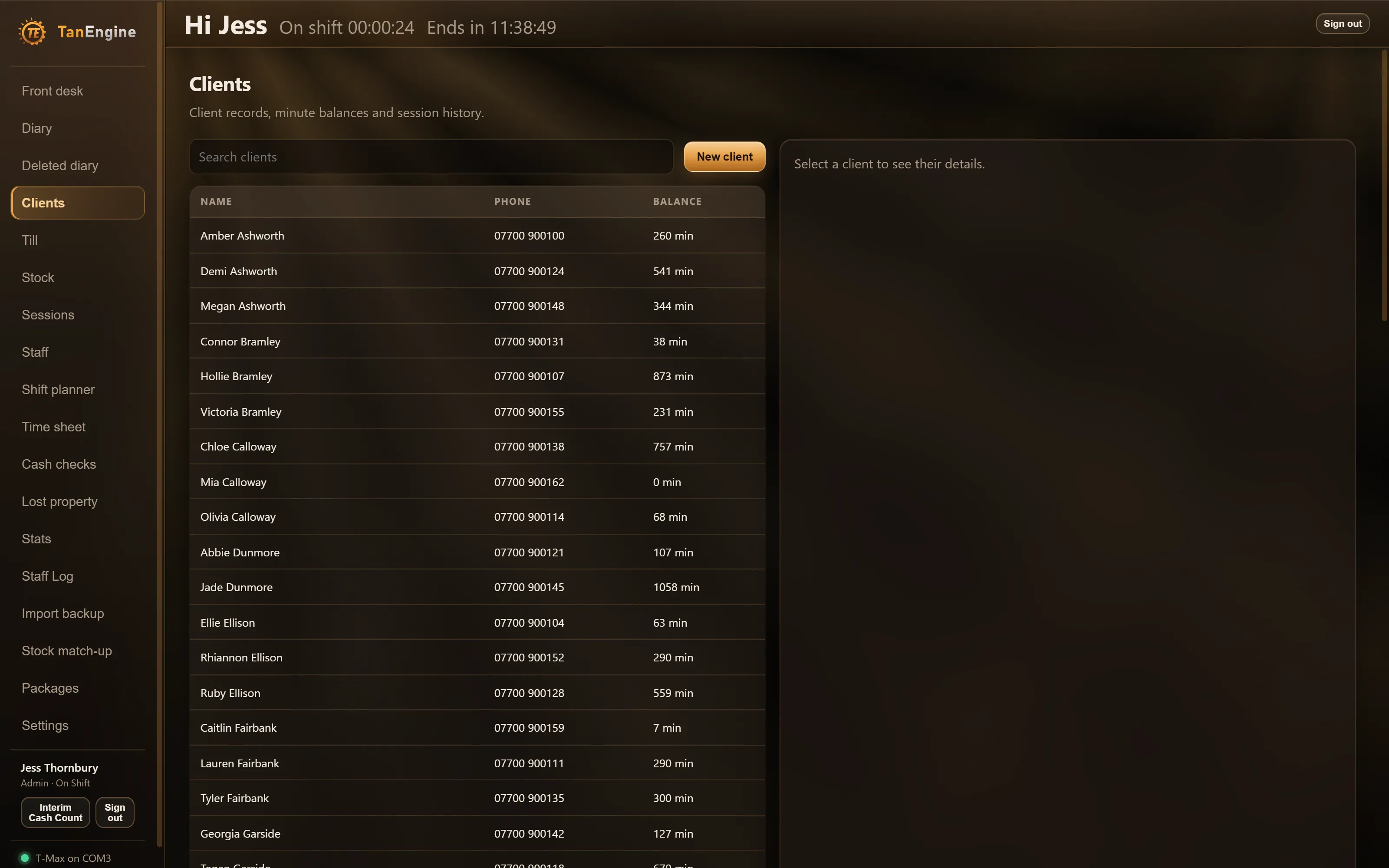
Add a client
- Open Clients from the menu on the left.
- Click New client.
- Fill in the details (see the table below). Only First name is always needed.
- Click Create. You’ll see “Client created” and their record opens.
| Field | What to put |
|---|---|
| First name | Required. |
| Last name, Phone, Email | Optional, but you’ll want a phone number to find them quickly. |
| Date of birth | Used for the age check before every session. Or tick Obvious Adult if they clearly are. |
| Customer has signed terms and conditions | Tick once they’ve agreed to your terms. |
| Skin type | Type I (very fair) to Type VI. Used to limit session lengths. |
| Card / fob number | Scan their card or fob here, or type the number. Each card can only belong to one client. |
| Last patch test | The date of their most recent patch or skin test. |
| Notes | Anything staff should know, for example “Prefers Bed 3”. |
Tip: Click into Card / fob number and scan the card with your barcode scanner. It fills the number in for you.
When Create stays greyed out
By default, TanEngine asks for two things before it creates a client:
- a Date of birth, or the Obvious Adult tick
- the Customer has signed terms and conditions tick
The button becomes available once both are done. Owners and managers can change this in Settings, under Client creation checks: set Require DOB or Obvious Adult and Require terms signed tick to Required or Optional, then press Save.
Important: The terms tick and Obvious Adult are only checked when the client is created; they aren’t stored on the record. To show “Waiver signed” on their record, capture their signature with Sign waiver (see Signatures, photos and skin types). Without a date of birth, the age check shows a warning before each session.
If something goes wrong
- “First name is required”: type at least a first name.
- “Enter date of birth or tick Obvious Adult”: add their date of birth, or tick Obvious Adult.
- “Tick to confirm the customer signed terms and conditions”: tick the terms box once they’ve agreed.
- An error mentioning the card number: that card already belongs to another client. Search for the number on the Clients screen to see who has it.
Screenshots show a demo salon. All client names and details are fictional.