Add staff and set PINs
Give each person their own account and PIN, set their pay and commission, and disable people who leave.
Who can do this: Owners and managers
On this page
Everyone who works the desk should have their own account. Their shifts, sales and actions are then recorded against them. Open Staff from the menu.
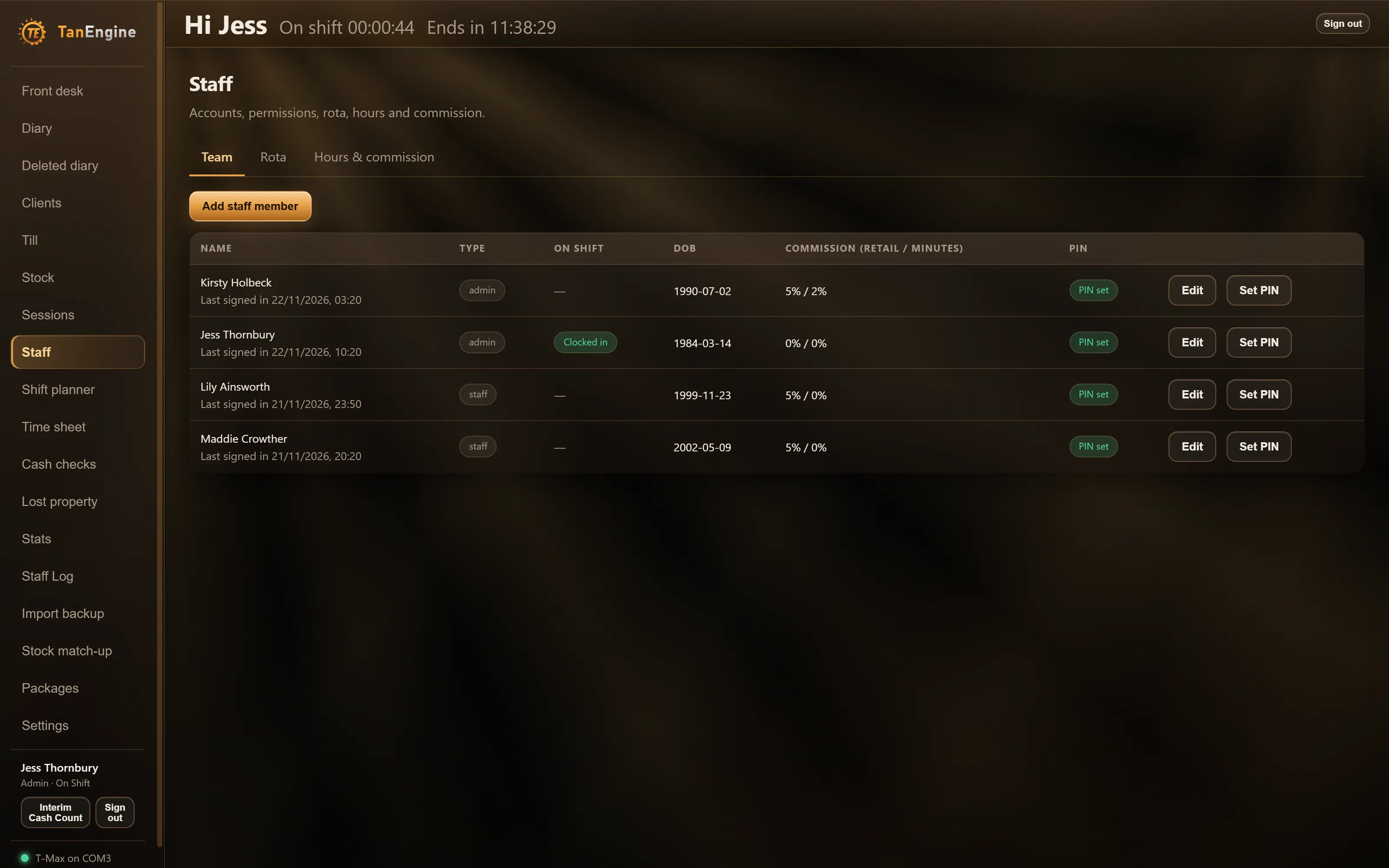
Add a staff member
- On the Team tab, click Add staff member.
- Fill in:
- First name and Last name
- Type: Staff or Admin (see Who can do what)
- Date of birth: used for minimum wage
- Hourly rate (£, optional): leave blank to use the UK minimum wage for their age
- Status: Active
- Retail commission % and Minutes/package commission %
- Click Add.
They’re added with the PIN 0000. Set them their own PIN straight away.
Set or reset a PIN
- Click Set PIN next to the person.
- Enter a New PIN of 4 to 8 digits, and repeat it in Confirm.
- Click Set PIN.
Forgotten PINs work the same way: an owner or manager sets a new one.
Important: While any account still uses 0000, TanEngine shows a warning. Until everyone has their own PIN, the staff log can’t prove who did what.
Edit someone’s details
Click Edit, change the details and click Save. There must always be at least one Admin account.
When someone leaves
Click Edit and set Status to Left / disabled. They can no longer sign in, and they disappear from the rota and commission report, but their history is kept. Accounts can’t be deleted.
Note: Keep at least one other Admin account active before disabling an Admin, so someone can still manage TanEngine.
The Team list
Each person shows their Type, whether they’re Clocked in, their date of birth, commission, whether they still have the Default PIN, and when they last signed in.
Screenshots show a demo salon. All client names and details are fictional.