Book a session
Use the booking popup to choose the customer, bed, session length, free minutes and dress-down time, then book or start.
Who can do this: Everyone
On this page
The booking popup opens when you click an empty slot in the Diary, or Put customer on on the front desk.
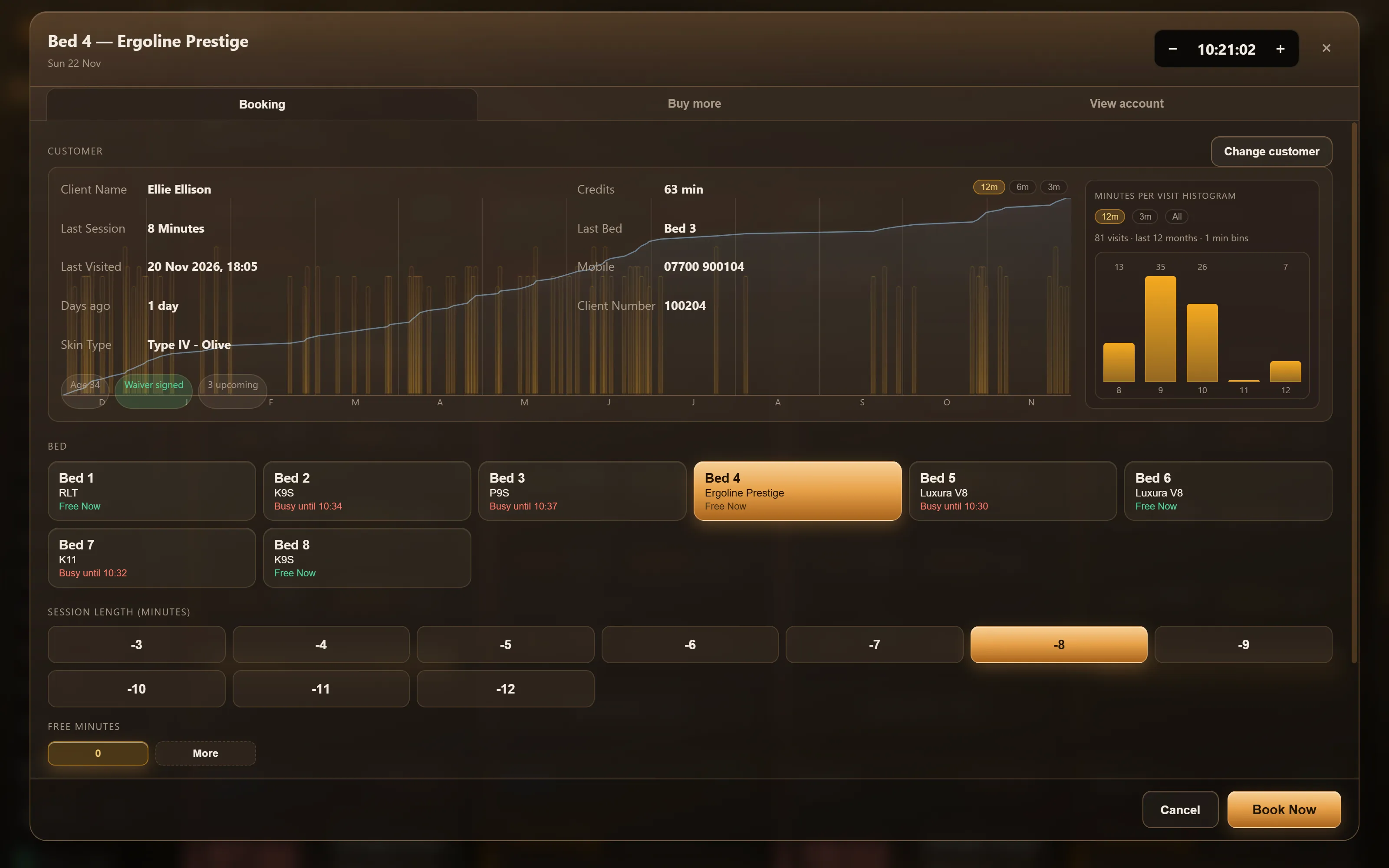
1. Choose the customer
Type their name, phone or card number in Search name, phone or card number… and pick them from the list (arrow keys and Enter work too). For someone new, click + New customer (see Add a new client).
Their client card shows their credits, last session, last bed, skin type, age and waiver, with a year of visits graphed behind the details and their usual session lengths alongside. Change customer picks someone else.
Note: Suspended customers can’t be chosen. You’ll see Account suspended with the reason and a button to open their record.
If it’s their birthday (within three days either side), TanEngine shows a Happy Birthday! message.
2. Choose the bed
Each bed shows Free Now, Busy until, or the time of its next booking. Pick the one you want.
3. Choose the session length
The Session Length (minutes) buttons go up to that bed’s maximum. Their last session length is picked for you. Lengths that would clash with the next booking are greyed out.
4. Free minutes (optional)
Under Free minutes, click More and pick how many to add. Choose a reason: Cold bed, Manager discretion or Other (type it in). Free minutes aren’t taken from their balance, and the reason is saved on the booking.
5. Dress-down time
Dress down (minutes before bed starts) is how long they have to get ready before the lamps come on: 2, 3, 4 or 5 minutes (3 to start with). They can start sooner with the button in the room.
6. Check the summary
The summary line shows the times, the cleaning gap, paid and free minutes and the dress-down time. Any safety rule problems appear underneath, in amber (a warning) or red (blocked).
7. Book or start
| Button | What it does |
|---|---|
| Book appointment | Saves the booking at the chosen time. |
| Start countdown | Books them now and sends the session to the bed straight away (today only; owners and managers). |
| Book Now | From the front desk: adds them to the bed’s queue, ready to start. |
| Cancel | Closes without saving. |
If a safety rule blocks Start countdown, a Session blocked box appears. See Safety rules.
Sell minutes in the same popup
The Buy more tab lets you sell minutes, courses and products without leaving the booking. Add items to the basket, choose Cash, Card or Other, and click Take payment. The minutes go straight onto their balance.
See their whole account
The View account tab shows their minutes, upcoming bookings, sessions this week and no-shows, plus their minute and money history.
Screenshots show a demo salon. All client names and details are fictional.