Plan the rota (shift planner)
Draw, move and resize shifts, use presets, copy a week, and make a shift report with pay.
Who can do this: Owners and managers
On this page
Open Shift planner from the menu. The week runs Monday to Sunday in half-hour slots, with each day’s opening hours at the top.
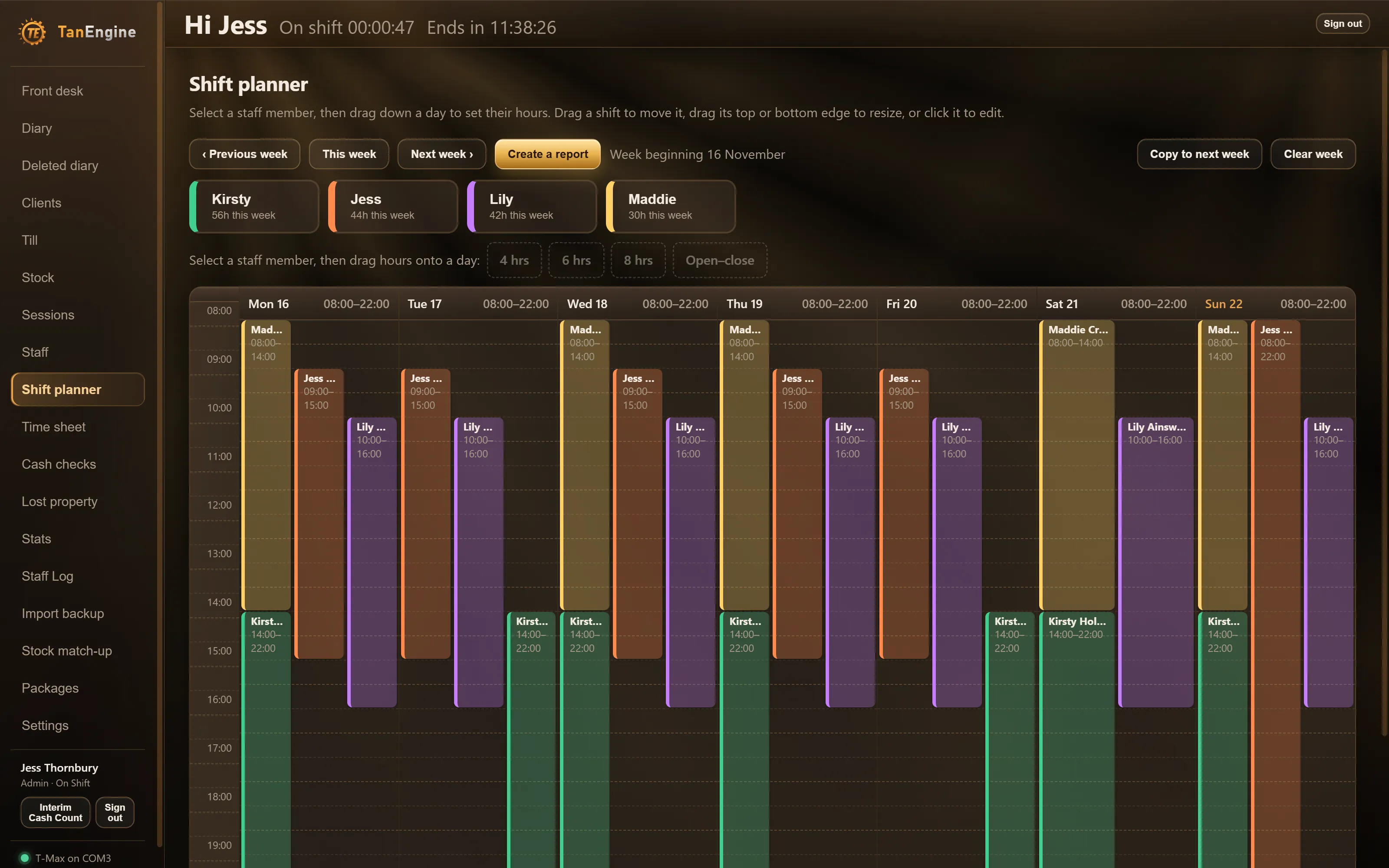
Add a shift
- Click a staff member’s button at the top. It shows their hours this week.
- Press on a day at the start time and drag down to the finish time (at least an hour).
Or drag a preset onto a day: 4 hrs, 6 hrs, 8 hrs or Open–close (that day’s opening hours).
Tip: Click the same person’s button again to deselect them. While someone is selected, everyone else’s shifts are dimmed.
Move, resize or change a shift
- Move: drag the shift to another time or day.
- Resize: drag its top or bottom edge.
- Change or remove: click the shift, edit From, To and Note, then Save, or click Remove shift.
Shifts snap to half hours. Times outside opening hours are shaded, but you can still use them.
Copy or clear a week
- Copy to next week copies every shift to the following week, skipping any that would clash.
- Clear week removes every shift in the week shown. Click Confirm clear week to do it.
Use ‹ Previous week, This week and Next week › to move around.
Make a shift report
- Click Create a report.
- Choose a Quick range (12 months down to 1 week) or Custom dates.
- Click Create report.
The report shows total pay, hours and pay by person, and every shift. Pay uses each person’s hourly rate, or the UK minimum wage for their age, on the date of each shift.
What the rota does
The rota sets each person’s expected finish, shown as Ends in in the top bar and used for late and early finishes on the time sheet. It doesn’t clock anyone in: signing in does that.
Screenshots show a demo salon. All client names and details are fictional.